Explore
Find Hyperliquid traders in the Library, watch Big moves live, compare records and inspect a trader's exits.
Explore lets anyone browse Hyperliquid traders and their public records. It has five tabs: Library, Big moves, Following, Compare and Copy list. Following and saving a personal shortlist ask you to sign in.
The Library
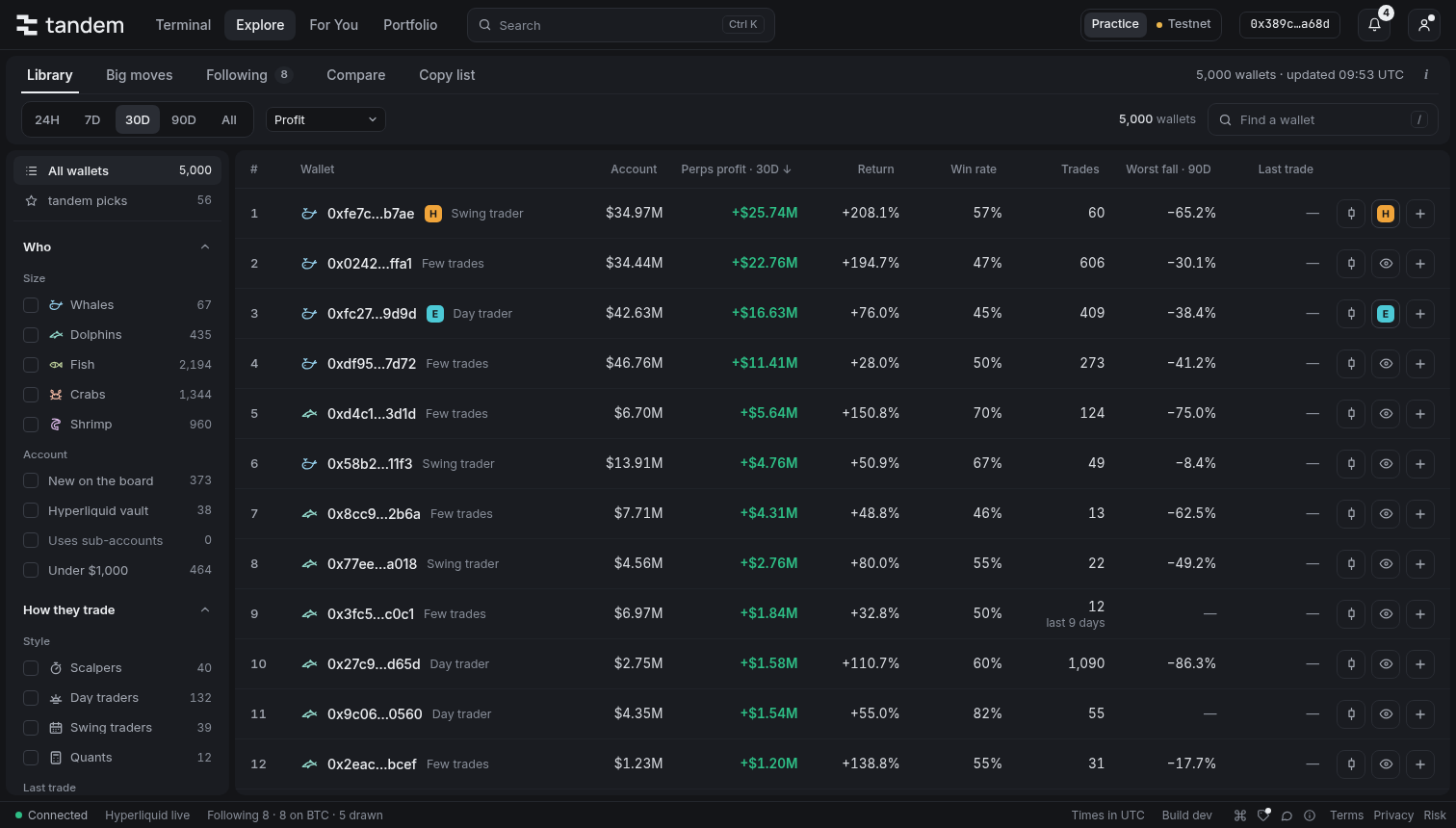
The Library lets you filter the tracked wallet universe, including crypto and HIP-3 markets. It is not just an ordered list of tandem's picks. Choose the picks filter to see wallets from the latest completed research run.
Each row shows its account size, profit, return, win rate, closed trades, worst fall and last trade, where available. The column heading names its period. The main period is 24H, 7D, 30D, 90D or All; win rate and trade count use 30 days, and worst fall uses 90 days. Missing data is not a zero. Shorter history cannot prove a longer record.
The default sort is Profit. Click a column head or use the sort menu, which also offers R:R · 30D: average winning trade against average losing trade, after costs. Read its hover for thin or missing records. Account size includes the trader's perps and spot; profit columns say when they cover perps only.
Filters
Use the rail on a wide screen, or Filters on a smaller one:
- Who: account size and the size groups, from Shrimp to Whale.
- How they trade: style, last trade, trade count, markets and mostly limit orders.
- How they did: profit or loss, return, steady days and win rate.
- Risk: worst fall, typical leverage, liquidations and how it exits.
Counts update with your choices. Clear a chip or choose All wallets to widen the list. Following and Copy list use the same filters over their own wallets. Search for an address to find a particular trader.
Big moves, live
Big moves shows completed moves recorded from Hyperliquid's public trade feed. Choose the last hour, day or week, then Newest or Largest, and use the filters to narrow it. A row names the wallet, market, side, size and move.
Live shows the feed's connection and freshness. Completed moves arrive in batches, usually after about a minute without another fill; a TWAP can take longer. This is not an instant view of every fill. New rows appear as they arrive when you are at the top. While you read further down, a new ↑ button lets you reveal them without moving your place unexpectedly. If the snapshot expires, use Refresh moves. A stale or disconnected feed does not mean no trades happened.
Look at one trader
Open a row for its preview, then its full page for profit, return and account history, positions, open orders, fills, closed trades and How it trades. Crypto and HIP-3 positions keep their market names and dex tags.
How it exits shows the period's closed-trade evidence and Stops now shows current protection separately. On the exit map, a square marks a stop, a diamond a take profit and a cross a liquidation. A dot means closed by hand or an exit tandem didn't observe. An unobserved exit is not proof that no stop was used. Thin or unread history says so.
Trades on chart opens the Terminal's review of this trader. Pick 7D, 30D or 90D, switch among its markets and inspect an individual trade on the price chart. Its net figures and their period stay labelled.
From a trader you can:
- Follow it, up to 52 traders. Its letter and colour identify it on the chart and in alerts.
- Add it to Compare or your Copy list.
- Open Copy, which takes a member to the trader in For You, using the account's practice or live access.
- Share its public 30-day record. See Share cards.
Labels and copy fit
Labels: what kind of trader
Styles describe how long a trader holds: Scalper, Day trader or Swing trader. Other labels include Quant, Market maker, Hedger and Institution. Hover a label to see the evidence. Not every trader has every label.
Copy fit
Where Copy fit is shown, it scores Steady, Drops, Room and Copyable. It is a guide from recorded evidence, not a prediction. Market makers can make money by quoting on both sides; copying their positions need not reproduce that.
Following
Following lists your followed traders, with the same filters as the Library. Their changes also appear in the Terminal's Following and Alerts tabs. Use Settings › Alerts for the default events, per-trader custom choices, mute, quiet hours and push. See Alerts.
Compare
Compare puts up to three traders together. Switch between Return % and Profit $ on the chart, choose the period and read their figures side by side. The rail lets you pick from search, your follows and saved wallets. A shared Compare link opens the selected traders for a visitor too.
Copy list
The copy list is a shortlist of up to ten wallets. When signed in, it is saved to your account and follows you to another browser. Add wallets from the Library, then compare two or three, or follow them together. The list's Copy action is still marked soon; it does not start a basket of copies. To copy a single trader, use For You.
A record is not a promise
The trader's results are its own. Your copy enters later, at different sizes and prices, with its own limits and costs. Read Risks before copying.